Homhero
How to authenticate the integration
We'll use a test app, Acme AI, to show how an end-user can authenticate the integration between Homhero and Acme AI.
- Go to Settings > Integrations section within Acme AI app.
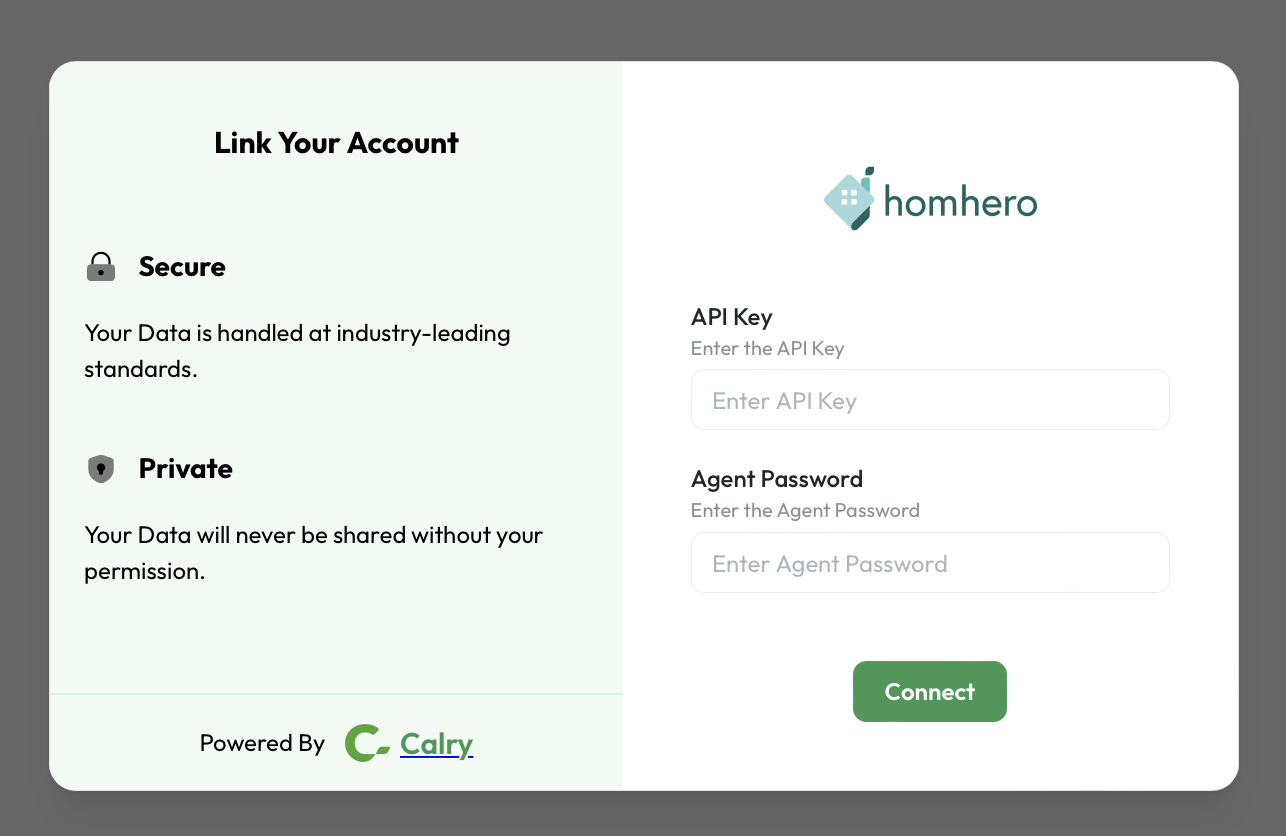
- Among the list of Integrations, click on Homhero's logo and you will be redirected to the Authentication Screen.
Now switch over to your Homhero account in a new tab.
Go to Booking Engine > API Keys section.Create a new API key as per the instructions shown on the screen.
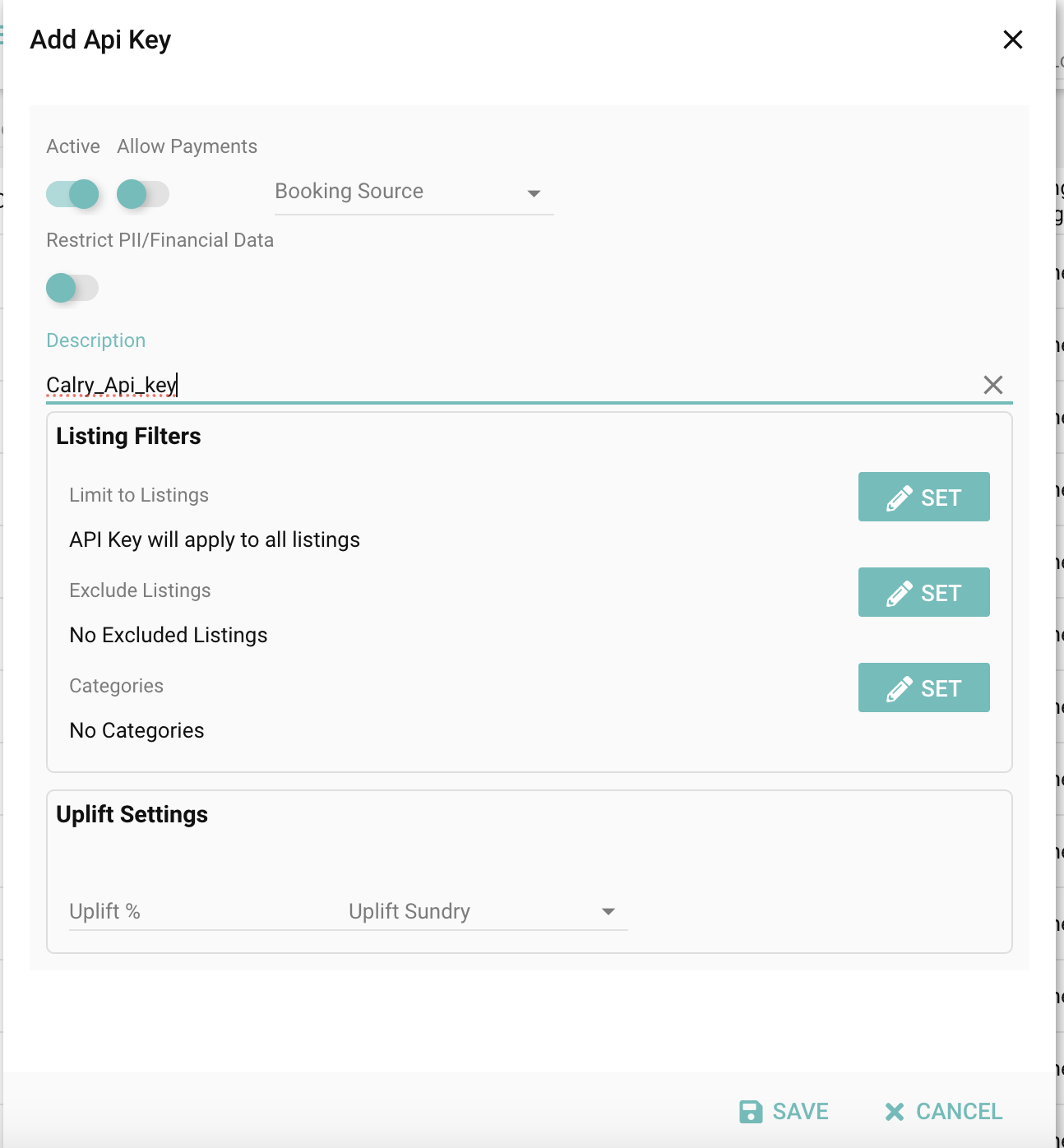
Reach out to Homhero support to obtain your API Password.
Note: If you're unable to find the API Key or need the API Password, please contact Homhero support.
Copy the API key and paste it into the Authentication Screen (from Step 2), then click on Connect.
You will see a confirmation message indicating that the integration has been successfully authenticated, and you will be redirected back to the Acme app.
How to set up Real-time webhooks
Go to the Homhero account’s section within Calry (Accounts > Homhero account > Webhooks).
Enter:
- Name
- Webhook URL (where you'd like to receive events)
- Select the relevant events
Click on Create.
Copy the generated Listener URL — this will be used in the next steps.
If you're using the Create Webhook API, you can fetch the
listenerUrlfrom the API response and display it to your end-user within the UI. This URL will be used in the following steps.Ask the end-customer to open their Homhero dashboard.
Navigate to:
Settings > Third Party Services > WebhooksCreate two webhooks with the following configurations:
Webhook 1
- Event:
bookings - URL: Paste the
listenerUrl
- Event:
Webhook 2
- Event:
reservation_messages - URL: Paste the same
listenerUrl
- Event:
Note: Please make sure to select the same api key you previously generated for this integration.
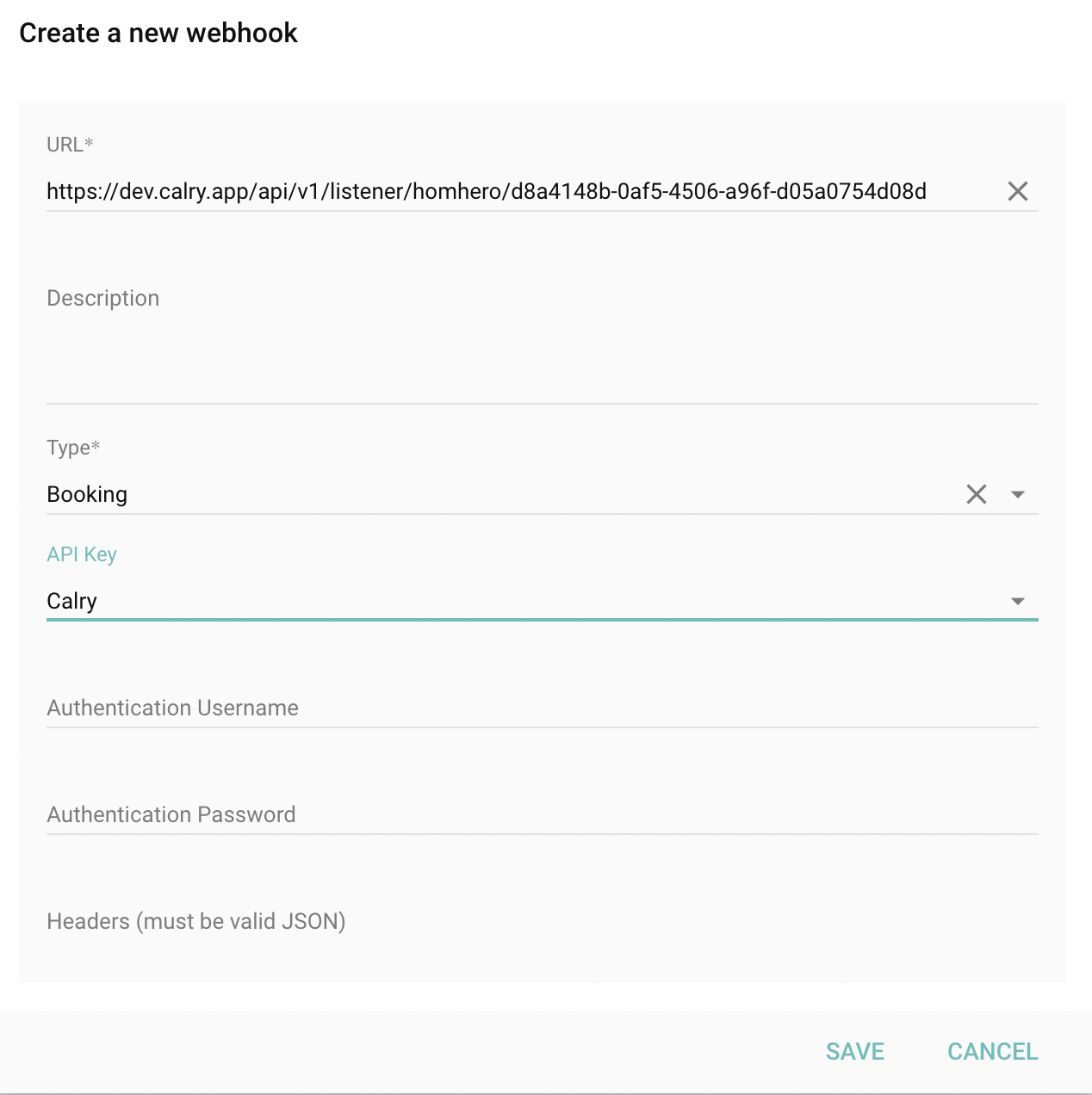
- Save the configuration.
If you have any questions or need help, don't hesitate to reach out at mail@calry.app.