Hosteeva
How to authenticate the integration if you're a Hosteeva Partner
Once you become a Hosteeva partner, you’ll receive your unique client_id and client_secret — you just need to add this in the headers and queryParams section of the Hosteeva integration on Calry, by going to Settings → Integrations.
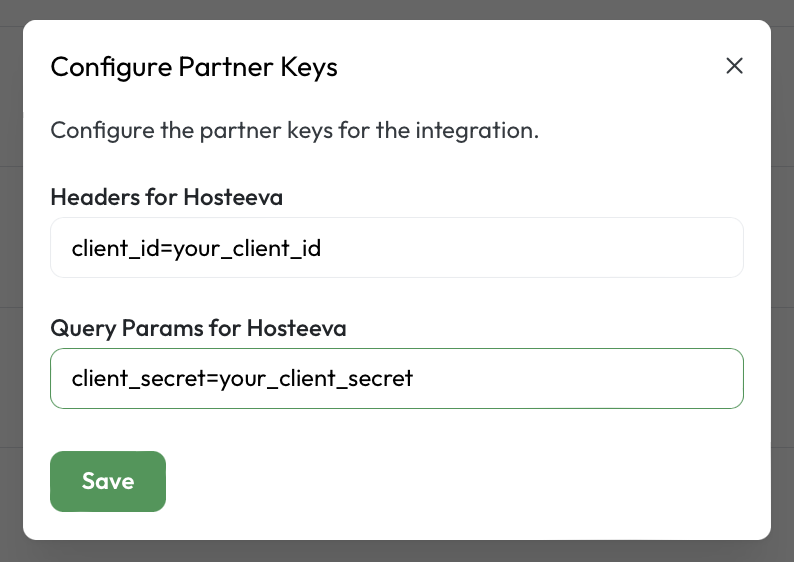
We'll use a test app, Acme AI, to show how an end-user can authenticate the integration between Hosteeva and Acme AI.
Go to Settings > Integrations section within Acme AI app.
Among the list of Integrations, click on Hosteeva’s logo and you will be redirected to the Authentication Screen as shown below.
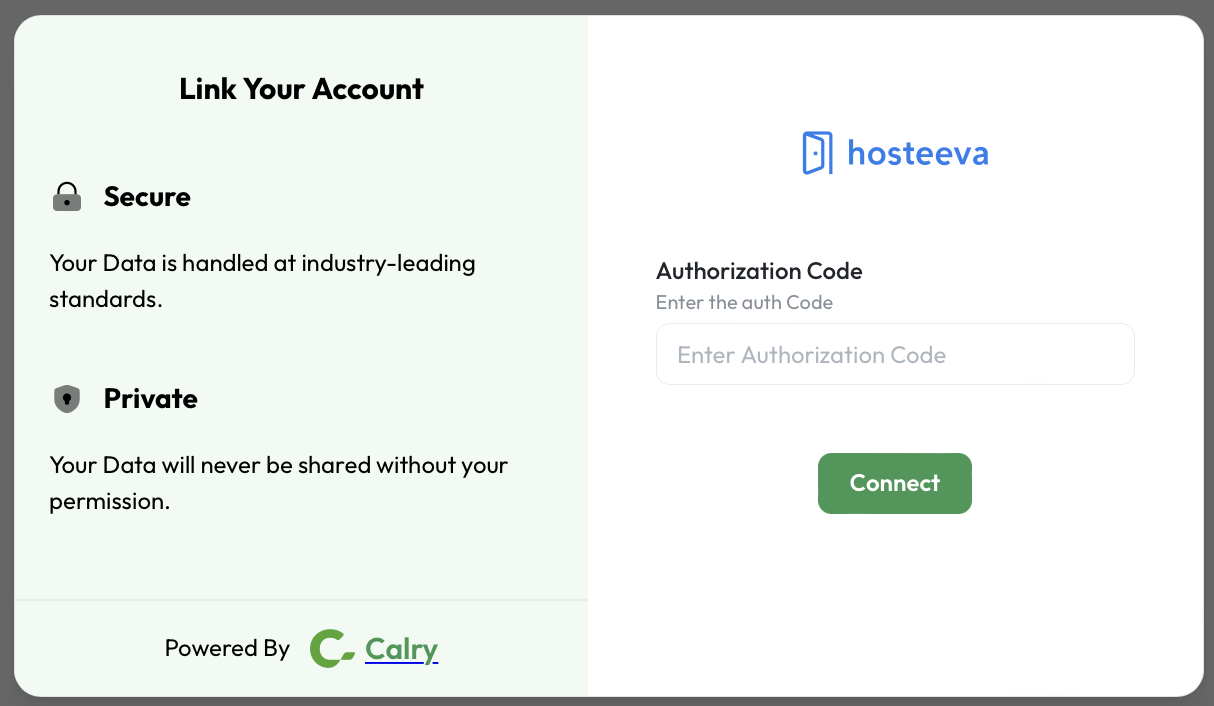
Now, switch over to your Hosteeva Account in a new tab. Click on Api Management within Hosteeva Dashboard, and click on the 'Generate Auth Code' button available there.
And then clieck on the auth code to copy it.
Paste it back on your Authentication Screen (from Point 2) and Click on ‘Connect’. You will see a message box that shows you’ve successfully authenticated the integration. You will be redirected back to Acme app now.
If you have any questions or need help, don't hesitate to reach out at mail@calry.app.